Dispatch Actions
User is presented with assigned routes and can make a selection:

User is presented with stops/contracts for the selected route and can make a selection:

When checking the box "Don't show this screen for future Start Route tasks". Next time you select start route, the screen will not be displayed.

User is presented with applicable action for the selected contract:
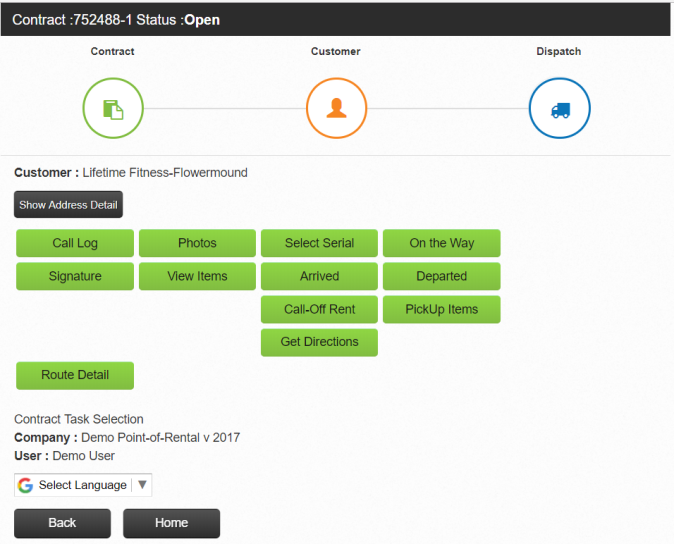
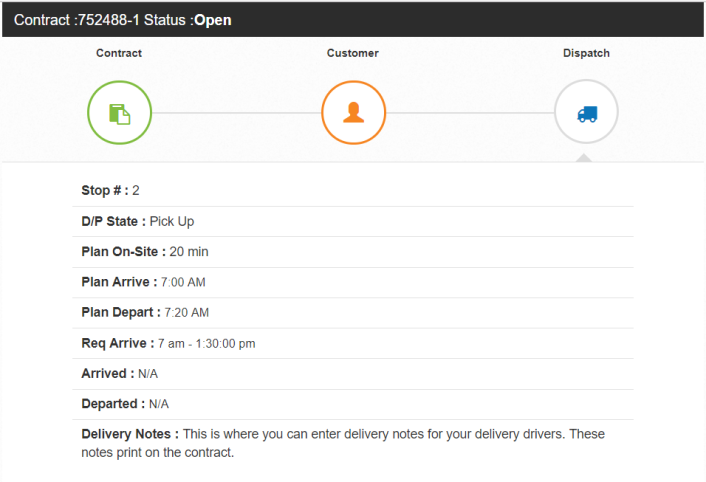
There are three icons, across the top of the screen, by selecting one of these icons, additional information will be displayed in relation to that particular icon (Contract, Customer, Dispatch)

Contract information will be displayed to include (Store, Information, Ordered By, Type of Customer, PO#, Job#, Salesman and Comments).


Customer information will be displayed to include (Status, Email, Phone, Mobile, PO#, Work, Billing Contact, Billing Phone)


Dispatch information will be displayed to include (# of Stops, D/P State, Plan On-Site, Plan Arrive, Plan Depart, Required Arrive, Arrived, Departed, Delivery Notes).
There are many useful tools a salesman or driver can use to (access, enter or update) a contract in the field.

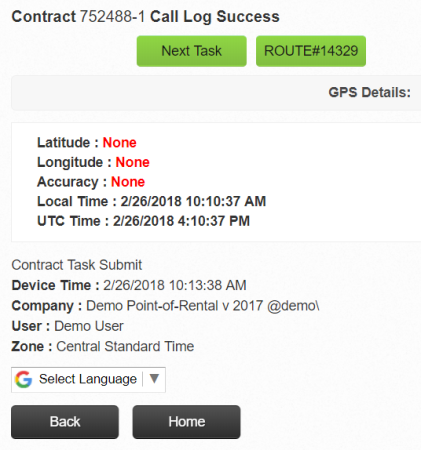
Call Log - Allows you to create a call log to the customers contract.

Once you enter the information and submit, you will see the status will change to "Call Log Success" letting you know the action was sent.
Photos - Allows a driver or salesperson to take a picture on-site and have it added to the contract.
Select Serialized - Allows you to see serialized items listed on the contract.
On the Way - This will inform the customer through a email notification that the driver is on the way to the customer.
Signature- Allows driver to capture customers signature on site, adding it to the contract.
View Items - Shows items listed from the contract.

Arrived - Allows the dispatcher to know when the driver has arrived on site.
Departed - Allows the dispatcher to know when the driver has left the site.
Call-Off Rent - Driver can call an item off rent from the jobsite.
Pick Up Items - Your driver can select the equipment being picked up from the jobsite. If the total quantity is being picked up, then you can select either the all button or check the box next to each item.
* Note: You will need to have the contract fulfillment module to be able to use this feature.

If you are picking up another amount other then the total quantity, you can select the green item key and enter in a different quantity amount. Once done, select submit.

Get Directions - Will use your default mapping app to display the address and allow for turn by turn directions. (Tested with Google Maps and Waze; may work with other map apps).
Route Details - Shows driver a list off deliveries/pickups for the day. Routes to include (Stop #, Contract #, Status, Plan Arrive, Plan Depart, Required Arrive, Site, Store location). Here he can select start route to let the dispatcher know he is starting the route.
*Note – The dispatcher who created the routes will see those routes on WorkForce without having to assign themselves as a driver or crew.